Friday, 1 June 2018

When to Change Your Toothbrush or Brush Head

BY Cavarii No comments


How Often Should You Change Your Toothbrush or Electric Toothbrush Head?  

Many dental professionals recommend changing your toothbrush about every three months, and the American Dental Association (ADA) recommends that you replace your toothbrush approximately every three to four months, or sooner if the bristles are frayed.  That's because, no matter what type of toothbrush you use, its bristles can become frayed and worn and may lose their effectiveness. And clinical research shows that a new toothbrush can remove more plaque than one that's worn out, ensuring that your brush is working its hardest to help keep your teeth clean and healthy.

Change Your Toothbrush Head When You Are Sick or Not Feeling Well 
Toothbrush bristles do not kill bacteria in the mouth, protect you against disease or prevent you from getting sick. So be sure to change your brush regularly for maximum effectiveness and to practice diligent hygiene, despite the type of toothbrush you're using.

Comparing the Oral-B CrossAction Power Series of Battery powered toothbrushes

BY Cavarii No comments

The Oral-B CrossAction Power Series of electric toothbrushes are all powered by an AA battery.

a) How does Oral B Cross Action Power work?


b) How to replace brush head of Oral B Cross Action Power

c) How to change the battery of Oral B Cross Action Power

These series uses the following type of replacement brush heads

Wednesday, 18 April 2018

Comparing Mi Air Purifier 2, 2s, Pro and MAX

BY Cavarii IN , , , 17 comments

Xiaomi Air Purifier 2

The Xiaomi Air Purifier 2 is the second-generation Mi Air Purifier, it can be controlled via an app and has a built-in Wi-Fi which connects to the home Wi-Fi network. The app ‘Mijia’ helps monitor the air quality inside/outside a user’s house in real-time. Enabled with three settings ‘auto’, ‘night’ and ‘manual’, it can be managed remotely via the app.

The app also includes features like automatic notification for changing the filter and custom settings for the functioning of the air purifier. Air Purifier 2 has a three-layered filter which promises to remove 99.99% of PM 2.5 particles and produces about 10,000 liters with clean air delivery rate of 330m3/h in standard mode and 338m3/h in active mode.

The air purifier is equipped with a new air pressurization system that includes axial fan, brushless DC motor, Francis fan design and conical duct. The device sucks in from all 360-degrees around the filter and is blown out using fans, said to be designed similar to an aircraft turbine.

Xiaomi Air Purifier 2s
The Xiaomi Mi Air Purifier 2s can be said to be an upgrade of the Mi Air Purifier 2, it isn’t superior to the Mi Air Purifier Pro, but it adds some of the features of the Pro version.

The product retains Mi air purifier 2 filter and with a Clean Air Delivery Rate (CADR) value of 310m³/h, added Pro version features like laser particle sensor and OLED display that enable to shows real-time PM2.5 values. Compared with infrared Sensors features in its predecessor, Xiaomi air purifier 2s version improved a lot on detection accuracy, besides showing PM2.5 values, it can also detect particles as small as 0.3μm in size.

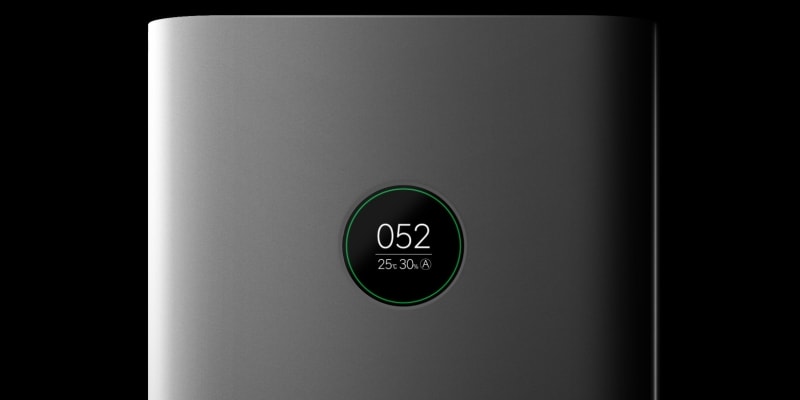
The most significant difference between this two model is 2s version added an OLED display, while at the same time other features have also been greatly upgraded. The OLED accurately shows atmospheric particulate matter (PM) that have a diameter of less than 2.5 micrometres, which is about 3% the diameter of a human hair (PM2.5 concentration) as well as temperature and humidity. It also comes with a WIFi connection and the work patterns so that you’ll be abreast with changes in the air quality. It has a laser sensor which assists in the accurate detection of particles as small as  0.3μm in size.

In addition, the Xiaomi Air Purifier 2s comes with a built-in light sensor that can automatically sense the ambient light changes in order to automatically adjust the screen brightness accordingly. This ensures the light doesn’t stay too bright at night so as not to disturb your sleep. Further, you get a device with a Clean Air Delivery Rate (CADR) value of 310m³ / h and can cover a room the size of between 21-32 square metres. This is quite lower than that of the second-gen Mi Purifier 2 and Mi Purifier Pro. For clarity, the Purifier 2 has a CADR of 406m3/h and can cover a working area of 48 square metres while the Pro version has a 500m3/h CADR and is also capable of covering an indoor area of 60 square meters.

The Air Purifier 2s also features a more refined three-layer filter that can pick up particles like allergens, animal fur, formaldehyde, dust, pollen and cigarette smoke from the air. The new product also added RFID smart filter identification, simplifying the cumbersome routine reset operation.


Xiaomi Air Purifier Pro

The Mi Air Purifier Pro boasting an increased capacity and coverage, it also is the first in the series to sport an OLED display. The highlight feature of the new and significantly larger Mi Air Purifier is the OLED display, which now shows real-time air quality using the PM2.5 concentration scale for particulate matter, alongside temperature and humidity. An LED ring around the display changes colour from green to red based on the air quality, and the company is also touting an auto brightness feature that will adjust to the time of the day.

As we mentioned, the Mi Air Purifier Pro is significantly larger than the Mi Air Purifier 2, with dimensions of 735x200x260mm. Xiaomi says it is meant to service rooms as large as 60 square metres, compared to the 37 square metres the Mi Air Purifier 2 could handle. It weighs in at 9.7kg.

The Mi Air Purifier Pro has a clean air delivery rate (CADR) value of 500 cubic metres an hour, compared to the 310 cubic metres an hour on the smaller model. It also touting a laser particle sensor for more accurate detection of air quality, capable of spotting particles as small as 0.3 microns in diameter.

It bears a triple layer 360-degree filter on board, with a PET pre-filter, an EPA filter, and an activated carbon filter. As before, the Mi Air Purifier 2 is Wi-Fi enabled, and can be controlled via the Mijia Home app for Android and iOS. The app also lets users share control with family members, and has three modes of operation - auto, night (sleep), and manual. Users can also set timer, and get reminders to change the filter.

The highlight feature of the new and significantly larger Mi Air Purifier is the OLED display, which now shows real-time air quality using the PM2.5 concentration scale for particulate matter, alongside temperature and humidity. An LED ring around the display changes colour from green to red based on the air quality, and the company is also touting an auto brightness feature that will adjust to the time of the day.


Xiaomi Air Purifier Max
The Mi Air Purifier Max features a design similar to the previous models that have so far been launched by Xiaomi, including the recently launched Mi Air Purifier 2S. It comes with an OLED display having a circular shape and is integrated with the operational design. As a result of its gigantic size, the Mi Air Purifier Max utilises a two-filter design. The design includes a left and right fuselage with a detachable top cover which allows users to replace the filters manually.

The CADR value of up to 1000m³ / h ensures the device can be used to purify the air in a room with an area of 120 square meters in just 3 minutes. Despite the large size, you won’t get bugged by noise as the Mi Air Purifier Max comes with Xiaomi’s patented silent noise reduction technology such that even in the highest mode, the noise is still reduced at just 34dB.


Feature comparisons of 2, 2s, Pro & MAX


Comparison of the size, from far left, Purifier 2, 2s, Pro and MAX

MAX is huge

Thursday, 8 March 2018

Xiaomi Mi TV 4A 32-inch cinema version wifi smart network flat-panel TV

BY Cavarii IN , , 1 comment


The Xiaomi Mi TV 4A (32 inches) uses a plastic housing with its entire body coming in black colour. As a result of the plastic body in use, the new Mi TV 4A  comes with a highly reduced weight which is just 3.9Kg, making it suitable to be easily carried around. When the base is attached to the TV frame, the weight goes up to 3.94Kg.


On the specifications, the Mi TV 4A features a 32-inch display with a resolution of  1,366 x 768 pixels and refresh rate of 60Hz. The TV has a viewing angle of 178 degrees. It is powered by a Quad-core 1.5GHz processor having four Cortex-A53 cores.

The graphic is powered by a Mali-450 MP3 GPU while the processor is supported by 1GB of RAM and there is 4GB of storage space available inside. The Mi TV 4A (32) also comes with two 5W stereo speakers while available interface includes two HDMI, an AV port, an S/PDIF output, DTMB, USB port and a connector.

The Mi TV 4A 32-inch version also runs Xiaomi TV PatchWall system meaning it has some smart features such as content recommendation according to user’s habit, seamless streaming of content and others.

Note:
This TV does not work with DVB T2 + S2 + C and only works with DTMB, the Chinese standard.   

FAQ for Xiaomi Mi TV 4A


  • What is the input voltage of Xiaomi Mi 32 inch TV 4A?
    220V - 50 / 60Hz.
  • What is the power consume on standby situation?
    Less than 0.50W.
  • Does it support hanging on the wall?
    Yes, it does.
  • What is the dynamic response of this TV?
    6.5ms.
  • Does it support Miracast, Airplay?
    Yes, it does.
  • Can it work with H.265 video?
    It can decoding H.265 video.
This item only supports Chinese menu. The default language is Chinese. There is a Patchwall UI layer on top of the Android OS that's based on deep learning AI technology, the Patchwall layer is ll in Chinese.

It can be changed to other languages after downloading the system settings APP, but the patchwall UI will remain in Chinese, only Apps that have multiple language interface will appear in English. All default pre-installed apps are in Chinese.


Thursday, 8 February 2018

Doing more on Xiaomi MiTV 4A

BY Cavarii IN , 2 comments

As the MiTV only comes with the Chinese content, most of which requires VPN services to access as the provided contents are meant for China users due to territory copyright issues, you will need to install third party apps to access the contents of yoru choice.

You can do a lot more with Xiaomi TV with the following:

Note: as the Patchwall UI keeps on changing, some of the features and videos below are based on the time of this post were written, and may be different by the time you are reading it.

1) Changing the System settings to english

In the following video you can see how to change from Chinese to English on Xiaomi Mi TV 4A.

Please note that only the relevant system settings UI will be changed to English, all other Apps that comes with Xiaomi will remain in Chinese, as these apps do not provide English version in their UI.

Download startSettings app by the link: https://goo.gl/T9H9KK


2) Control your TV with your handphone with MiTV Assistant


Xiaomi's MiTV Assistant App is designed specifically for Xiaomi users with IOS or Android smartphones or tablets.

Major functions:
a) Screencast - you can easily browse, search for massive video library, video collection, or projected onto a button to start playing on your TV.

b) Can be used as a virtual remote control on MiBox or MiTV. Using the remote functions to operate the TV by sliding, flipping and can operate with your eyes closed.

c) Screen capture function - through the screenshots button, you can at any time, intercept TV content by capture screenshots, and share to friends on social media

d) Search through the App for TV contents - and screen cast to the TV

Note - The phone and MiTV must be on the same network for the App to work


3) Installing third party Apps

a) Live NetTV - Live NetTV provides 800+ live TV channels in 9 categories which are: Sports, Entertainment, News, Movies, Documentary, Cooking, Music, Kids and Religious. The service is absolutely FREE.

b) Movie HD - This App allows users to Watch and Download their favorite Movies and TV Shows for free. It is an app for everyone to enjoy latest Movies and TV Shows for FREE.

Note - need to get activation code if you don;t sign in with google Account, read here

c) Redbox TV - RedBox TV is a FREE live streaming App where you can watch your favorite TV channels anytime. It has 1000+ live channels from 15 different countries

d) Mopdro - Mobdro App is one of the most popular apps in the market know for its services. With Mobdro APK, Android device users can access shows, TV channels and other programs without any subscription.

e) UKTV Now - UkTVNow is the best live video streaming application for the Android platform. You can browse live TV channels from countries like Canada, France, United Kingdom, United States, Germany, India, Spain, Italy, Pakistan etc.

f) Freeflix HQ - FreeFlix HQ is a free content streaming app that lets you watch Movies, TV Shows, Anime, Live TV and more.

g) VPlayer 7.0 - VPlayer for Android is the leading free Multimedia player for the Android operating system which allows you to watch all popular video formats on your phone or tablet.

h) AptoideTV - The optimised app store for your Set Top Box and Smart TV


4) Screencast mirror on MiTV

In the following video, a detailed step by step procedure to mirror your android phone using Miracast which is inbuilt in the Mi TV 4. Also included in the video is a simple way to Mirror (airplay) your iPhone, iPad & MacBook to the Mi TV 4.


Tutorial How To Unblock Geo Restrictions And Watch Chinese Movies From Overseas


Thursday, 17 August 2017

Configuring Lifesmart Superbowl

BY Cavarii No comments

1) First download the LifeSmart app by scanning the QR code in the Chnese user manual, OR, use the following line to download

https://itunes.apple.com/app/lifesmart/id717760736?ls=1&mt=8

http://www.ilifesmart.com/download/LifeSmart.apk

2) Smart the App, you'll need to wait for while for the app to search the environment and after which you should see the following screen 


3) If you haven't got a LifeSmart account, you can start creating one, remember, you'll need an account to configure all your LifeSmart devices, and store all your configurations in their cloud


4) After that you can log in now


5) after login-in to the LifeSmart App, you can start adding devices to you profolio


6) Select "SPOT" if you want to add your superbowl


7) Select the correct model of SPOT, look at the bottom of your device for the right model to choose


8) To add the superbowl, you connect it to the micro-USB to power-up, and it will first glow white after a few seconds, and wait for another 60 seconds for it to turn green, then you can click "START" button on the app


9) To add, the SPOT need to be in AP (access Point) mode, acting as a router. To enter AP mode, you need to press the button next to the micro-USB port on the back, for 15 seconds and then release, wait for a while until it start blinking with red light

If this does not happen, repeat 7, 8 & 9


10) If there is red blinking light, press "Next". You will first need to make SPOT the access point to connect to you home Wifi network. On your mobile phone's wireless LAN, select "LifeSmartSAP" from the available network list, and get it connected

Then return to the LifeSmart App


11) Confirm your mobile phone is connected to the LifeSmart App


12) Select the Wifi access point you are using at home to access the Internet


13) Enter the WiFi password to get connected 


14) You had just added the SPOT superbowl to your list of LifeSmart devices 


Saturday, 1 July 2017

Xiaomi Bluetooth Remote control - Pairing and sync

BY Cavarii 7 comments

The following are the models that are supported

These boxes model are supported only


Use the following step to pair ans sync with your existing box

If you are not able to pair or sync on first try, your previous bluetooth remote may still be "paired" with the box, some boxes only allowed one bluetooth device to be paired at any one time.

It is very likely that you had lost your previous bluetooth remote, or the unit not working anymore.

If that's the case, you may need to download the "MiTV Assistant" (投屏神器) to log in and remove the previous bluetooth, and to pair with the new bluetooth remote


after installing, you need to connect your existing box through the app, then select the box, and you should see the following "virtual remote control", use this virtual remote control to navigate your TV Box, go to settings, bluetooth, and remove your existing remote control


After that, try to sync and pair your new remote control again