Friday, 8 May 2015

How to clear the cache and free up storage space on your MiBox

BY Cavarii IN , , 9 comments

As we had mentioned earlier that a new MiBox (both the 4K and Mini version) has only 1.7 GB of storage space available when you first open up the new box.

This 1.7 GB of storage should be sufficient to be use for both caching and buffering of streaming media contents, however, you you install lots of other third apps, it will take up most of the 1.7 Gb storage, and you may end up having only a few hundred MB of storage space left.

Most streaming contents do not stream on-the-go in real time, some would require caching by pre-download the contents to build up enough buffers before streaming can run smoothly on your screen.

Once you run out of free storage, you will likely get error message asking you to clear up storage space, or in some cases, you can't even start a particular app.

The following are the major storage taken up, after you had run the box for a period of time:

a) Caching contents for streaming media, some app do not perform house-keeping by auto deleting these files after exiting the app;
b) Installation files, e.g. apks, since Apps were updated almost every week, where new versions of apps were downloaded and later updated, there are lots of temporary files left behind;
c) Temporary files downloaded for EPG, playlist etc

How to clean up these files?

The following are 3 major ways to clear up these files and free up your storage:

1) Clean Master (pre-installed for all MiBox)

Clean Master is all-in-one Android Apps that have the cleaning and optimizing tools and maintenance tools in a single place. Clean master is the one of the best clean and maintenance tool for Android. It will help you to clean app cache , unused files, residual files, search history and uninstalling apps. Compare to other apps in this category, it has more tools in one environment to easy to use.

Clean Master comes pre-installed on any MiBox, you can find it with a "Bloom" icon as shown above, click on it to start.

 It will auto detect what kind of files can be optimised or deleted.

Click to start the optimising process.

Optimisation completed

Process completed

2) Shafa Market (Third party installed for all MiBox)

Shafa Market is a third party aggregated App store plus maintenance tools App widely used. In this write-up, we will only concentrate on the "Maintenance tools" part

Click on the Shafa Market icon to start the app

Navigate to the "My Apps" header menu, and choose "Junk Files" on the left side bar

It will start scanning and detecting all temporary files...

Press "OK" to delete all these temporary files

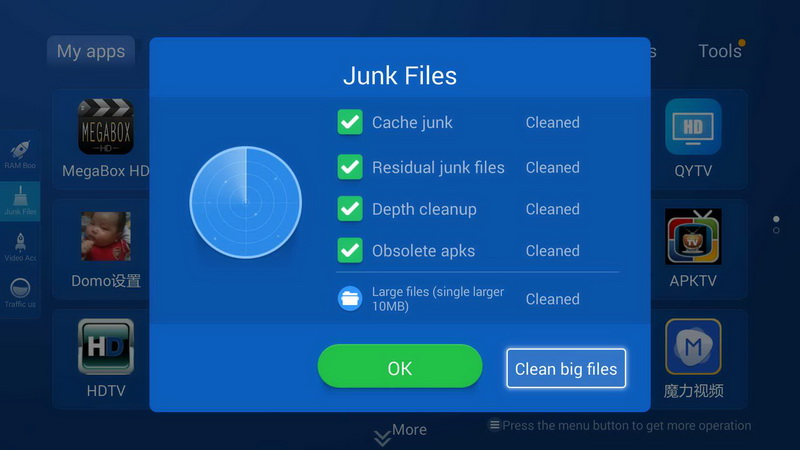
Apart from these temporary files, there are bigger chunks of larger files that need to be deleted, select the "Clean big file" option

It will start scanning for files larger than 10MB, most of these are temporary transit files for updates, and new updates.

Confirm the deletion by selecting "Clean"


After the house-keeping above, you can check on the new space availability by selecting the "Uninstall" option under "Tools"

You can see the space available on the top right hand corner, if there are still not enough space for you, you may want to consider uninstall some of the apps that you seldom use. 


3) Kodi Maintenance Add-on (pre-installed for all MiBox)

Kodi’s “Maintenance Tools” is an Add-on that allows you to keep your setup constantly optimized, while giving you a wide array of functionality that’ll keep your Kodi up-to-date and running awesomely.

 To access Maintenance Tools, go to Video -> Add ons
 
Click on the XunityTalk Maintenance

 Select "Maintenance"

You will see a list of utility options

First select "Clean Video / Music Libraries"

Cleaning in progress

Cleaning completed!

Select "Remove Addons" if you want to remove any seldom used Add-ons

 Select the "Add-ons" that you wish to remove

 Select Yes" to remove

Select "Delete My Cache"

Cleaning completed

Select "Delete Packages" to delete some of the temporary packaging cache files

Select "Yes" to confirm

Delete complete


Sunday, 3 May 2015

All About TV Box Contents

BY Cavarii IN , 10 comments


Xiaomi's MiBox


1. The Differences between MiBox 4K and MiBox Mini

There are two version of MiBox, the MiBox 4K which has a USB Port, and the MiBox Mini, which doesn't have one. The following graphic gives the direct comparison:


The following explanations apply to MiBox 4K, MiBox mini, MiTVs and the Mi TV Bar, which are all using the TV version of MIUI OS.

2. Licensed Contents comes with Xiaomi

All versions of MiUI for MiBox 4K, MiBox Mini, MiTV and TV Bar (collectively call Xiaomi TV devices here) come with just the licensed contents provided by their China Content providers, iCNTV and GiTV. These contents are only accessible from within China, i.e. you need a China IP address to access. If you use the Xiaomi TV devices outside of China, e.g. Malaysia, these contents will be Geo-blocked, i.e. you cannot access with a non-China IP addresses.

You can't access these contents unless you have a China VPN service to bypass the Geo-block. With the China VPN service, once activated, your Xiaomi TV devices will be assign a China IP address by the VPN servers, establish a tunnel, and enable both GiTV and iCNTV servers to grant you access to their contents.

 MiBox Mini's default launcher program, which will launch into the above GiTV interface

 MiBox 4K's default launcher program, which will launch into the above iCNTV interface


3. Limitations with most TV Box, MiBox, and similarly the MiTV

The following are the few limitations with an original sealed-pack MiBox, or a new MiTV, fresh from China without any modifications.

a) Limited Contents


Both Boxes, and MiTV, come with Xiaomi's own App store, which provide very limited Apps, to make matter worse, if you go through a firmware updates, the latest MIUI firmware will totally removed remote installation of third party apps. Basically the original MiBox is just a plain Android TV Box with limited contents.

b) Limited Storage Space

To install third party apps, you'll need to install jailbreak App Stores that enabled you to remotely install any third party apps, as well as apps that are not officially available on most official app stores.

Both versions of MiBox comes with 4GB Flash Internal storage, but after the Android OS and some system reserved space, only around 1.7 GB is available for you to install other new apps. If you are keen on all kinds of new apps, there may not be enough storage for you.

MiTV and TV Bar comes with 8G of internal storage.

At the same time, if you do install some of the Apps that requires local cache and streaming buffers, e.g. Kodi, you may soon be running out of storage, as these local buffer/cache may be as big as a few hundred MBytes, after watching a full length movie.

c) Language Interface

All Xiaomi TV devices comes default in Chinese User Interface (UI) only, and if you do not read Chinese, you will not be able to use the box, as all interface are in Chinese. You'll need special tool to switch to English UI. You will not be able to do it on your own if you are buying a sealed-pack, as Xiaomi had removed all the language setting options;

d) Installation of Third Party Apps

In the latest MIUI firmware upgrades, Xiaomi had also remove the remote installation of App options, which was previously available. With this, you'll not be able to install third party apps on the MiBox mini, as it does not come with any USB port; as for MiBox 4K, MiTV and TV bar, you can still do app installation through the USB port, through a USB thumb drive.


4. What is Jailbreak Service?


"Jailbreak" generally means to enable you to install third party apps that are normally not found on the official App Store, usually due to the "illegal" status of these apps, as most of them provide contents that will unlikely be approved by the official App Store due to copyrights infringements.

Since buying a Xiaomi TV devices will have limitations as described above, you will need something we collectively called "Jailbreak Services" to enable your MiBox to have apps that can stream more interesting contents than those provided by the original box.

Some of the common "Jailbreak Services" will include the following:

a) Installation of Third Party App Stores

Since the official App Store do not provide the necessary sources for "interesting" apps, usually alternative third App Stores will be installed, where there are lots of new Jailbreak apps can be found and installed;

b) Installation of Third Party Jailbreak Apps


If you do not have VPN services, you will not be able to access contents from the iCNTV and GITV provided by Xiaomi, due to territory rights restrictions. 

However, there are lots of third party jailbreak apps that will have quite similar contents as those provided by iCNTV and GITV apps licensed for Xiaomi.

There are also jailbreak apps that are not even found on the third party app store, as they will likely be taken down as well by the store owner. Most of these apps can be found on underground forum and usergroups, and they usually provides free movies, dramas, variety shows from HK, China, Taiwan and Korea etc

On top of that, the popular Kodi also provides lots of Video Add-ons from various private repositories, these Add-on provides English sports, movies, Dramas and Live TV Channels from around the world.

c) Enable Remote Installation of Apps

If you purchase a sealed-pack box, you will not be able to enable the remote installation, there are third party tools that can enable remote App installation functions;

d) Trial license for VPN Services - See below

e) Trial viewing for IPTV services - See below

f) Language Interface tools - Third party tools that can enable English UI


5) Free Contents 

Basically, there are 4 major categories of online streamed contents that are free:


a) Archived Chinese contents, movies, dramas and variety shows from China, HK and Taiwan, Korea, all streaming on demand; these are provided by most of the Jailbreak apps from China;


b) English movies - available from individual apps like Showtime. Popcorn etc;


c) Live Asian TV channels - Most China Live TV channels are free, however, if you are looking for live HK, Taiwan and western TV channels, they are subscription based, you can installed some of these IPTV apps which offer 2-7 days of trial viewing, after which you'll need to subscribe with the respective vendors;


There may be a few apps that offer live TV channels, but mostly are cloned sources ripped from other IPTV services and they generally ceased streaming after a week or two, there are no free lunch for Live TV channels;

d) English movies, sports, TV series, Live English TVs - all through Kodi's Video Plug-ins

All the above are free, and the streaming quality will depends on the hosting countries and servers, as these are jailbreak apps, we cannot guarantee they will always operate, as they can be raid by their respective hosting countries, capped by ISPs, or the app developer /owner may quit providing free service anytime.


6) Paid IPTV Channels

These are subscription based, ranging from RM200 - 350, depending on thet kind of contents you are after, the popular one are -

i) 180 channels from HK, Taiwan, China, US/UK (CNN, BBC, Sports, etc) for an annual fee of RM200

ii) 300 channels from HK, Taiwan, China, US/UK, Malaysian Satellite (40 channels), Spore, Indian, Thai etc - for an annual fee of RM350

You can install trial versions of IPTV Apps, which give 2-3 days trial viewing period, some requires you to provide you TV Box’s Mac / ID Code to activate, you can sign up for subscriptions with the respective vendors, if you need these live TV channels;

Most of these live TV channels are provided by vendors in China, and they are usually paid through China's payment system e.g. Alipay etc, 

7) China VPN Service

As the default GITV and iCNTV app coming by default with the MiBox had been geo-blocked by IP, you cannot access them outside of China, certain contents from China (e.g. Youku and iQiyi) provided by the jailbreak apps may also be Geo-IP-blocked, or capped by the local ISPs, you will need to have China VPN to have a smooth access to these contents.

There are free trial version of a China VPN service, which you can install and access these Geo-IP-blocked contents after activating the VPN services. You can compare the speed with and without the VPN access during this trial period. After the free trial period, you can decide whether you need to sign up for the VPN subscriptions.

8) What kind of Bandwidth is required to stream online Contents?

Again it depends on what kind of contents you are trying to stream and what kind of bandwidth does the hosting servers have.

a) Hosted Content servers

Most video contents are hosted on servers located everywhere, for personal and pirated contents, they are likely hosted on free services which usually have very small bandwidth and traffic are likely capped when their assigned quotas had exceeded, or more than the allocated concurrent users connected allowed had exceeded.

If you are subscribing to paid services, either legal or illegal, they are likely hosted on bigger servers, with bigger bandwidth purchased by the service provider, and able to handled hundreds or thousands of user connections.


b) Your Bandwidth

There are different resolutions of video contents, from the lowly rated 240p to 480p generally called SD (Standard Definition), to 720p or 1,080p HD (High Definition) or 1,440p and beyond like the new 4K video.

SD contents will require a minimal 4mbps line, whereas the HD contents at least a 10mbps line, or at least 30-100mbps for the 4K contents.

Streaming contents is similar to watching Youtube videos on your PC or laptop, except they are being displayed on the TV, instead of Tablet or PC monitor. Most streaming contents are likely a TV series episode, a movie, or a live sports event, which generally is at least an hour or more duration, just ask yourself how is your streaming experience if you are streaming a hour HD Youtube video on your network. If it lags, then your network is not up to par.

Also it will depends on whether there are any other members on the same network doing downloading, watching youtube, or any peer-to-peer traffic.

If you are having 3 persons doing the same thing on the same network, you bandwidth is down to only a third.


c) Contents restrictions and ISP Capping

As online streaming become mainstream, most local ISPs had also started capping some video sources, by restricting the bandwidth for certain subscription groups, or overall traffic coming into their network.

Friday, 1 May 2015

Configuring and setting up a Xiaomi USB-RJ45 converter

BY Cavarii IN , , 9 comments

Original USB to RJ45 UTP Ethernet cable for Xiaomi TV MiBox 

MiBox Gen 3 4K Edition does not come with an UTP network port, if you need to connect to the MiBox using network cable, you can purchase this optional item to convert your USB port for the MiBox to be a UTP port to connect via network cable to your LAN.


Setting Up

Go to "settings" of MiBox, as in picture below:                                  


If you are currently connected to the network via WiFi, you should see the WiFi icon on the Top Left hand corner of the screen.

The USB-to-UTP connector is a plug-and-play device, when you connect the USB port at the MiBox, and network UTP cable at the other end, the led light on the connector should start blinking, and once connected, it would stop blinking.

When UTP network cable is connected, it will disable the WiFi.

Under "Connected" you should see a Network port item instead of the Wireless icon.

Click onto "Connected", you should see "WiFi" is disabled, and under "Ethernet",


For most network, it should be running DHCP, which would automatically assign IP to your connector, you just plug in the RJ45-UTP adapter, it should start working, no configurations required.


If you are running DHCP in your network, it should auto assign an IP to your USB-to-UTP adapter, else, you will need to set settings of "Static IP" to "Turn Off" and enter your IP address and other info manually.


What if no Network can be detected?

When the converter is plug into the USB port, with the other end connected to a valid UTP cable, it should automatically grey out and disable the WiFi connection when the UTP cable is inserted, if it does not, there are a few possibilities

a) The USB port of your MiBox could be faulty 

Try mounting a USB thumb drive or USB hard-disk to the USB  port, if it works, then the USB port should be working;

b) Is the light on the converter blinking when a UTP cable is inserted into the UTP port?

If it does blink, but no IP being assigned, the possibilities is that your network router / switch may be configured with:

i) limited devices can be connected to the router, and the maximum devices had connected to it, and all IPs had been assigned, OR

ii you router may be configured to allow only certain Mac Address to access the network, and the converter's Mac address may not had been added to the allowed list;

c) Is the Converter Faulty?

Try connecting the converter to a PC, and then connect to a valid network cable, if it works, then the converter should be ok.

Monday, 6 April 2015

Xiaomi Launches Monopod Selfie Pod

BY Cavarii IN , , No comments

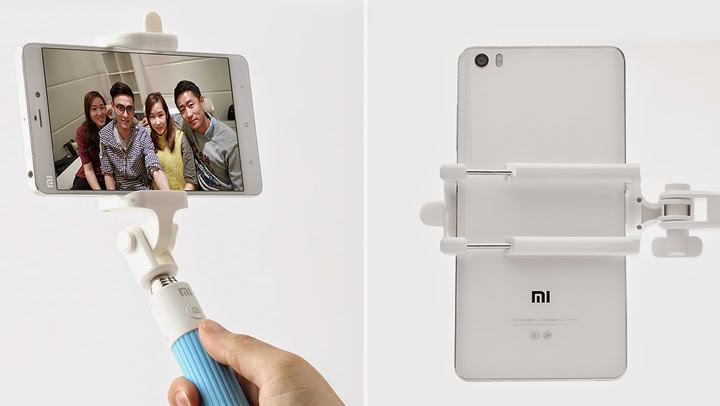
Xiaomi had launched their new Monopod Selfie Stick


It features a integrated Bluetooth Connectivity which means that you will be able to take a selfie with just a button placed near to where you keep your hands.


It currently supports only on iOS Devices with IOS 6.0 and above and Android Devices. Single charge can last around 10,000 shots


Since most of the Selfie Sticks are designed for its portability, The Xiaomi Monopod Selfie Stick weights about 150g, which makes it lighter and more comfortable to hold on. It also supports some of the Apps like the Camera 360 Ultimate available on both Apple Store and Playstore and some others too.


The Folded length is equal to Mi Note’s Length, which means you will you will able to place any smartphone below 6 inches into the selfie stick. You can also change the angle of taking a selfie which is now seen on most of the monopod selfie sticks.


It is made up of 7 segments and you will be able to take a selfie from a shortest length of 20cm to a greater extent of 85cm.


Connected via Bluetooth, operates with single hand, designed using Broadcom chipset, for faster and stable transmission


It is made up of High quality Silicon Material holder which makes it less slipery and gives a more comfy grip. Its available in 3 variant colors – grey,pink and blue.


Friday, 3 April 2015

The New Xiaomi Bluetooth Game Controller

BY Cavarii IN , No comments


Xiaomi, has announced its new Bluetooth-enabled game controller in China.

While the official pricing of the game controller, which looks like the Xbox One controller, has not been revealed as of yet, it is set to hit shelves in China on 25th Sep 2014, for selected Xiaomi users.

The official website states that the first 300 buyers of the Bluetooth game controller would only have to shell out just RMB1  for the device.

The Xiaomi game controller sports a D-pad, analogue sticks, Y, X, A, and B buttons, as well as two shoulder buttons on either side.


It also has a back button, menu button, and a home button with Mi branding. It is powered by 2xAA batteries. 

The specifications of the Bluetooth game controller are not yet known, however some websites speculate the device will be compatible with the Android-powered Mi TV and the Mi Pad 7.9 tablet.

The game controller will likely be compatible with Xiaomi's Mi 3 and Mi 4 smartphones also.