Note : All features, descriptions and screen captured for this write-ups are accurate at the time of writing, but are subject to changes due to the high pace of App changes and new devices being added, some features may no longer work, or some newly added.
About the App

Mi Smart Home app is your home intelligent hardware management platform. You can interact your Smart Phone with all the Xiaomi smart hardware and achieve inter-operability between them, and experience the convenience of intelligent life.
Mi Smart home Apps currently can manage the following Mi Ecosystem products : Air purifier Gen 1 & 2, Water Purifier, MiWiFi routers, Master Remote controller, MiTV, alll versions of MiBoxes, Mi Smart Home Kits, Yi IP Cam, Yeelight LED Bulb, Smart Plug, Power Strip Panel, Internet Radio, Midea Air Conditioner, Aux Air conditioner, Junxing Air Conditioner and Philips Eyecare Lamp.
All the devices and settings are currently store on Mi Clouds, where you can easily backup and retrieve. Simply sign-in to the Mi Cloud with your Mi Account on a mobile phones, and all the saved configurations and settings are all retrieved on the new Smart Phones.
Major Features Overview
a) Smart Links
The App is able to add new Mi Ecosystems intelligent devices in a simple manner for themselves

b) Device Control
The APP control all smart home appliances, and can be accessed from anywhere, as long as you have Internet access.

c) Share your family
You can share access to some of these device to family and friends and enjoy the convenience of a warm intelligent life together.

d) Intelligent Scene
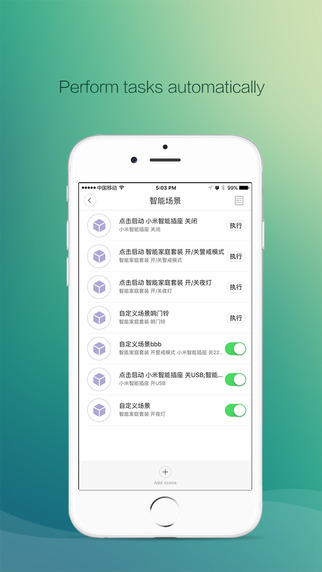
You can go through simple setup to configure various easy and fun intelligent scenarios with other Mi ecosystems products.

New Features
1) Selecting your Hosting regions
In the past, Xiaomi only provide their Cloud hostings in China and users of the Mi Smart Home App outside China regularly facing "time-out" or "connection problems" whenever they are registering for new devices under the App. This is mostly due to the great China Firewall or DNS settings in local ISPs.
Starting from 2016, Xiaomi had added 3 more cloud locations for some of their major markets outside China, these locations are Singapore, Taiwan and India. You can now decide where to host your Smart Home App, where all your settings and configurations will be back up ONLY* to the cloud location that you had selected.
To choose the Mi Cloud location, you must logout first, then select the location, and log in again.
* Please note, your settings will only be saved on the cloud servers that you had selected, i.e if you initially select your location as Chinese Mainland, if you later log in and select Singapore, your settings will not be available as they are never saved on Singapore servers.


Note : At the time of this writing, not all regions support all devices released from Xiaomi, if you are buying products only available in China market, you'll probably still need to select Chinese mainland as the region. But due to the unpredictable China firewall, sometimes you may not be able to register and save your configuration & settings on Mi Cloud during the initial setup.
What is the minimum Android and iOS version supported for this app?
At the time of this write-up the minimum version of the major two mobile OS supported are as follow:
Android - 4.0 and above
iOS - 7.0 and above
But with the increasing addition of new Smart devices under Xiaomi's Mi Ecosystem product series, the Apps are continuously being updated by Xiaomi, whether they will withdraw support for certain older OS
Where to get and install the Mi Smart Home App?
You can access the latest version of the App at the official App site - http://home.mi.com/index.html, which is only available in Chinese interface, or download them by scanning the QR code below.

You can also get them from the respective official app stores.

https://play.google.com/store/apps/details?id=com.xiaomi.smarthome
https://itunes.apple.com/EN/app/xiao-mi-zhi-neng-jia-ting/id957323480?mt=8
** Please make sure you are downloading ONLY the official Apps and not from third party sources.
Further info
You can also visit their official Forum site for latest discussion and releases for Mi Smart Home App, but this site is only available in Chinese
http://bbs.xiaomi.cn/f-363
About the App
Mi Smart Home app is your home intelligent hardware management platform. You can interact your Smart Phone with all the Xiaomi smart hardware and achieve inter-operability between them, and experience the convenience of intelligent life.
Mi Smart home Apps currently can manage the following Mi Ecosystem products : Air purifier Gen 1 & 2, Water Purifier, MiWiFi routers, Master Remote controller, MiTV, alll versions of MiBoxes, Mi Smart Home Kits, Yi IP Cam, Yeelight LED Bulb, Smart Plug, Power Strip Panel, Internet Radio, Midea Air Conditioner, Aux Air conditioner, Junxing Air Conditioner and Philips Eyecare Lamp.
All the devices and settings are currently store on Mi Clouds, where you can easily backup and retrieve. Simply sign-in to the Mi Cloud with your Mi Account on a mobile phones, and all the saved configurations and settings are all retrieved on the new Smart Phones.
Major Features Overview
a) Smart Links
The App is able to add new Mi Ecosystems intelligent devices in a simple manner for themselves

b) Device Control
The APP control all smart home appliances, and can be accessed from anywhere, as long as you have Internet access.

c) Share your family
You can share access to some of these device to family and friends and enjoy the convenience of a warm intelligent life together.

d) Intelligent Scene
You can go through simple setup to configure various easy and fun intelligent scenarios with other Mi ecosystems products.
New Features
1) Selecting your Hosting regions
In the past, Xiaomi only provide their Cloud hostings in China and users of the Mi Smart Home App outside China regularly facing "time-out" or "connection problems" whenever they are registering for new devices under the App. This is mostly due to the great China Firewall or DNS settings in local ISPs.
Starting from 2016, Xiaomi had added 3 more cloud locations for some of their major markets outside China, these locations are Singapore, Taiwan and India. You can now decide where to host your Smart Home App, where all your settings and configurations will be back up ONLY* to the cloud location that you had selected.
To choose the Mi Cloud location, you must logout first, then select the location, and log in again.
* Please note, your settings will only be saved on the cloud servers that you had selected, i.e if you initially select your location as Chinese Mainland, if you later log in and select Singapore, your settings will not be available as they are never saved on Singapore servers.


Note : At the time of this writing, not all regions support all devices released from Xiaomi, if you are buying products only available in China market, you'll probably still need to select Chinese mainland as the region. But due to the unpredictable China firewall, sometimes you may not be able to register and save your configuration & settings on Mi Cloud during the initial setup.
What is the minimum Android and iOS version supported for this app?
At the time of this write-up the minimum version of the major two mobile OS supported are as follow:
Android - 4.0 and above
iOS - 7.0 and above
But with the increasing addition of new Smart devices under Xiaomi's Mi Ecosystem product series, the Apps are continuously being updated by Xiaomi, whether they will withdraw support for certain older OS
Where to get and install the Mi Smart Home App?
You can access the latest version of the App at the official App site - http://home.mi.com/index.html, which is only available in Chinese interface, or download them by scanning the QR code below.
You can also get them from the respective official app stores.

https://play.google.com/store/apps/details?id=com.xiaomi.smarthome
https://itunes.apple.com/EN/app/xiao-mi-zhi-neng-jia-ting/id957323480?mt=8
** Please make sure you are downloading ONLY the official Apps and not from third party sources.
Further info
You can also visit their official Forum site for latest discussion and releases for Mi Smart Home App, but this site is only available in Chinese
http://bbs.xiaomi.cn/f-363